Connect an AI Provider
Introduction
You can connect Smart Answering to an external AI provider so you can work with your conversations from inside the AI assistant you already use. Once connected, the assistant can securely read your Smart Answering conversations on your behalf — for example, to summarize recent calls or answer questions about your customers.
Connecting happens through a secure sign-in flow. You log in to your Smart Answering account and authorize the assistant. Your password is never shared with the AI provider.
Today, Smart Answering supports the Claude connector. Support for more AI providers is on the way.
What You'll Learn
In this topic, you'll learn about:
Before You Start
To connect an AI provider, you'll need:
-
An active Smart Answering account, with the email and password you use to sign in.
-
A supported AI assistant. Smart Answering currently supports Claude.
Claude is the first supported AI provider. We add new connectors regularly, so check back for additional providers such as ChatGPT and Gemini.
Connect Your AI Assistant
Select your AI provider below and follow the steps to connect it to Smart Answering.
- Claude
- ChatGPT
- Gemini
-
In Claude, open the connectors marketplace and search for Smart Answering. Select the Smart Answering connector and choose to connect it.
-
The Smart Answering Log in screen opens. Enter the email and password for your Smart Answering account, then click Log in.
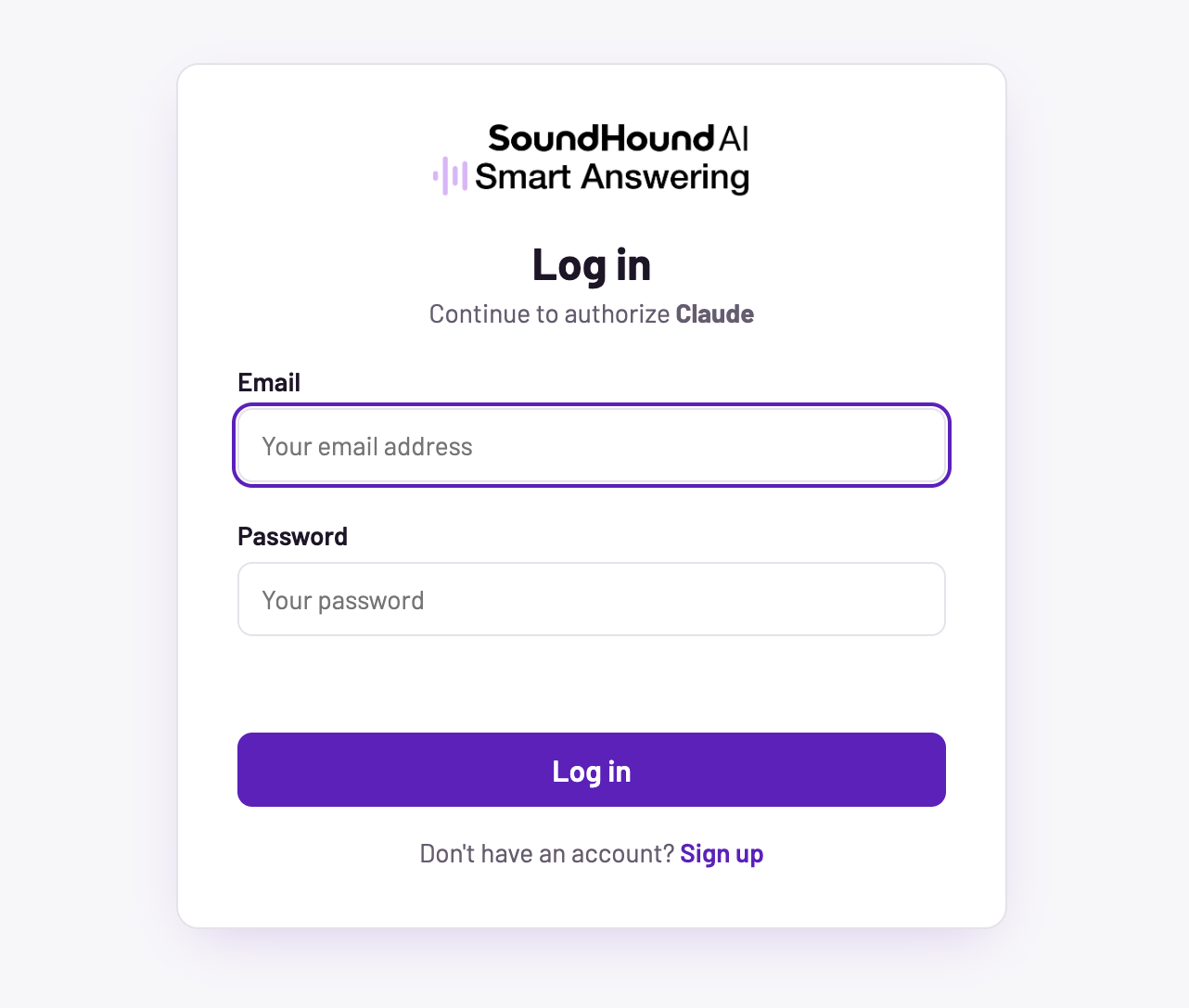
The Smart Answering log in screen
- On the Authorize access screen, review the access being requested. Click Allow to grant Claude permission to read your conversations on your behalf.
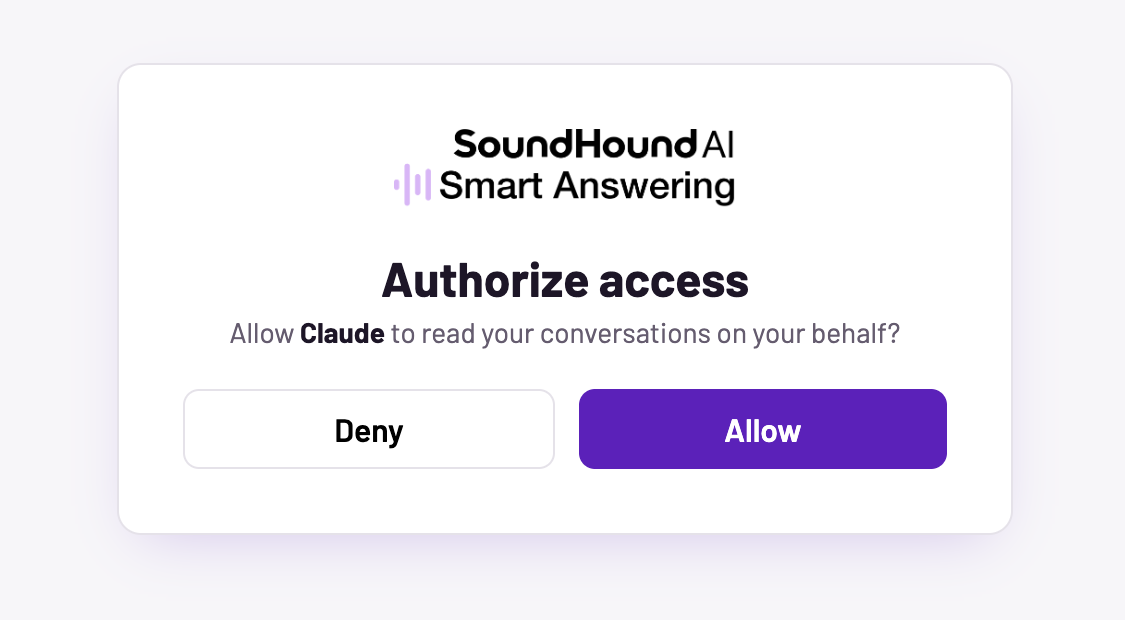
The Authorize access screen
- Claude is now connected to Smart Answering. You can return to Claude and start working with your conversations.
The Smart Answering connector is rolling out in the Claude marketplace. If you don't see it yet when you search, check back soon or contact our support team.
A ChatGPT connector is coming soon. Check back for setup steps, or contact our support team to let us know you're interested.
A Gemini connector is coming soon. Check back for setup steps, or contact our support team to let us know you're interested.
Check the Connection
To confirm everything is working:
-
In your AI assistant, verify that Smart Answering appears as a connected provider.
-
Try a test prompt. For example, ask the assistant to summarize your most recent Smart Answering conversations. If the connection is working, the assistant will use your Smart Answering data to respond.
If the assistant can't access your conversations, disconnect and reconnect the Smart Answering connector, then sign in and authorize access again.
Next Steps
Want to learn more about your agent? Read our Getting Started page or FAQs page. Or Contact our support team with any questions.